Introduction
Wondering if your iPhone will automatically adjust for daylight saving time can be a common concern. As we rely on our devices for accurate timekeeping, ensuring they adjust correctly during daylight saving changes is crucial. Fortunately, Apple’s iPhones are designed to handle these transitions seamlessly. This guide will help you understand how your iPhone manages these changes and what steps you should take to maintain accurate time on your device.
Understanding Daylight Saving Time and Your iPhone
Daylight saving time (DST) involves setting clocks forward by one hour in warmer months to extend daylight into the evening. It’s a routine that can leave many questioning how their devices update to reflect this change. Thankfully, iPhones are equipped with features that automate this adjustment process, reducing the need for manual intervention.
Your iPhone utilizes network time protocols that sync with official time changes in your region. This feature ensures that when daylight saving time begins or ends, your iPhone is automatically updated. Let’s delve deeper into how these adjustments take place and what you can do to verify your device is configured correctly.
How iPhones Automatically Adjust Time
iPhones have built-in settings that ensure they reflect the correct time, even during daylight saving time changes. Here’s how your iPhone keeps the time accurate:
-
iOS System Settings for Time Adjustment: Within the Settings app, under ‘Date & Time’, there’s an option called ‘Set Automatically’. This feature relies on your location to determine the correct time zone and makes necessary adjustments for daylight saving time.
-
Ensuring Automatic Updates are Enabled: To enable automatic updates, go to Settings > General > Date & Time. Make sure ‘Set Automatically’ is toggled on. This setting allows your iPhone to use location data and network-provided time information to stay accurate.
-
Differences Across Recent iOS Versions: With each iOS update (2024 and beyond), Apple might improve how time adjustments are handled. Ensure your iPhone is running the latest iOS to optimize time accuracy during daylight saving transitions.
These settings confirm your iPhone is ready to adjust time automatically, relieving you of the need for manual input during daylight saving transitions.
Preparing Your iPhone for Daylight Saving Time
With daylight saving time approaching, it’s wise to double-check your settings to ensure your iPhone is ready. Here’s a checklist to prep your device:
-
Verifying Time Zone Settings: Navigate to Settings > General > Date & Time, ensuring ‘Set Automatically’ is on. This feature allows your iPhone to automatically adjust your time zone, even when traveling or during daylight saving changes.
-
How to Update Your iOS for Accurate Time: Keeping your iPhone’s software up-to-date is essential for accurate timekeeping. Regularly check for software updates by going to Settings > General > Software Update.
-
Tips for Avoiding Time Change Issues: Ensure your iPhone has a stable internet connection and sufficient battery before the expected time change. This helps prevent interruptions that could affect the automatic update process.
Following these steps ensures your iPhone is ready for daylight saving changes, minimizing any unexpected issues. However, in rare cases, you might face discrepancies that require troubleshooting.
Troubleshooting Time Adjustment Problems
If your iPhone doesn’t adjust to daylight saving time correctly, consider these troubleshooting steps:
-
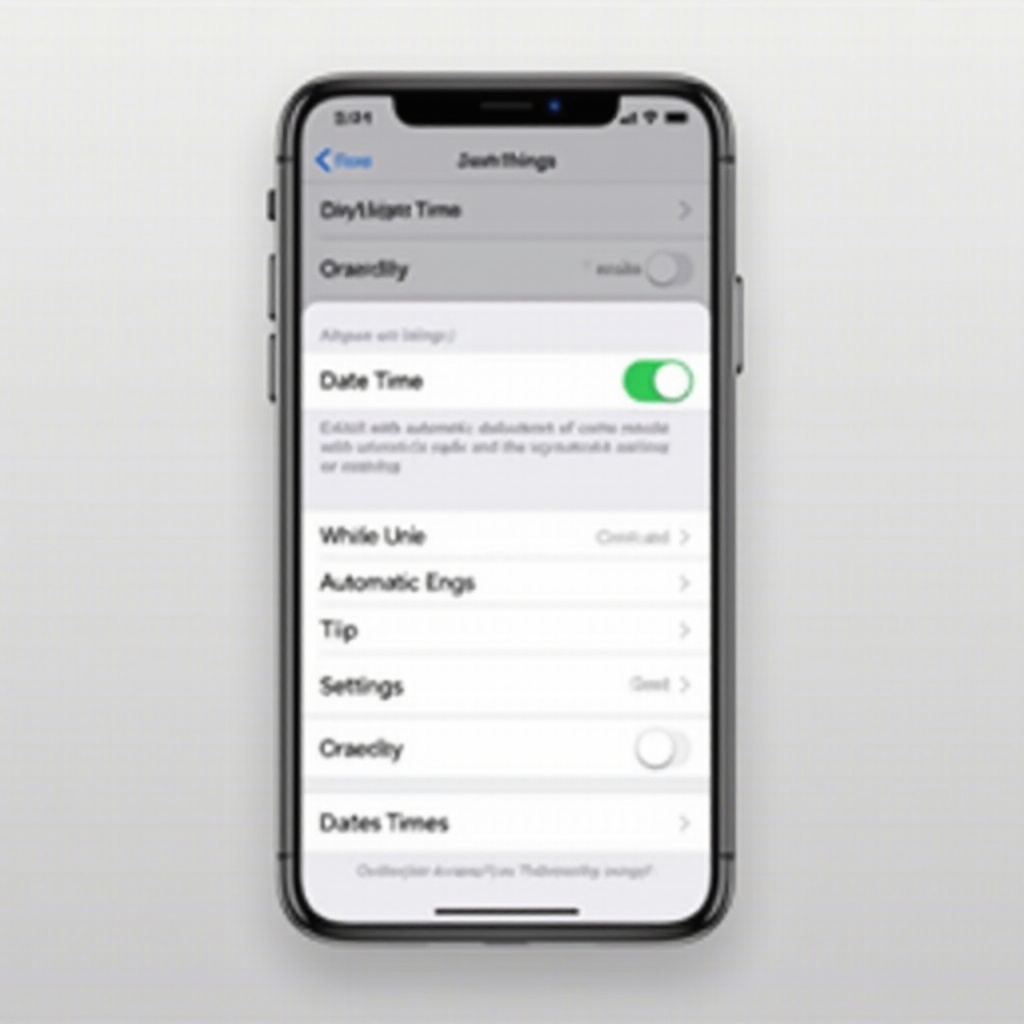
Common Issues and Their Solutions: A frequent issue is the ‘Set Automatically’ setting being off. Re-enable it in Settings > General > Date & Time. Also, confirm that location services are active, aiding in determining the correct time zone.
-
When to Manually Adjust Time Settings: Should automatic adjustments fail, you can manually set the time by disabling ‘Set Automatically’ and setting the time zone and current time manually. Once resolved, re-enable automatic settings.
-
Seeking Help from Apple Support: If manual adjustments don’t resolve the issue, reach out to Apple Support. They can provide guidance on further steps or any software updates necessary to fix the problem.
By addressing these potential issues, you can maintain your iPhone’s accuracy through daylight saving time changes.
Conclusion
Your iPhone is adept at managing daylight saving time shifts with minimal intervention. By ensuring your settings are correct and keeping your device updated, you can trust your iPhone to maintain accurate time throughout the year. If any issues arise, simple troubleshooting steps will typically rectify them, so you can enjoy peace of mind as the seasons change.
Frequently Asked Questions
How do I know if my iPhone will automatically adjust for daylight saving time?
Ensure ‘Set Automatically’ is enabled in Date & Time settings and your device is up-to-date with the latest iOS version.
What should I do if my iPhone doesn’t update the time correctly?
Verify ‘Set Automatically’ is on and location services are active. If problems persist, contact Apple Support for help.
Can I disable the automatic time adjustment feature on my iPhone?
Yes, by toggling off ‘Set Automatically’ in Date & Time settings, though it’s best to leave it on for accuracy.