Introduction
Bose headphones offer exceptional sound quality and cutting-edge features. To fully leverage their capabilities, it’s essential to pair them correctly with your devices, such as smartphones, laptops, or smart TVs. This guide provides detailed steps to pair your Bose headphones with various gadgets, troubleshoot issues, and maintain optimal performance for a seamless listening experience.
Understanding Bose Headphones and Bluetooth Technology
Bose headphones utilize Bluetooth technology to deliver a wireless audio experience, allowing easy connection with different devices. Understanding how Bluetooth technology works with Bose devices facilitates smoother pairing and helps address connectivity challenges. Bluetooth operates via radio waves to establish data exchange between your headphones and gadgets within a short range. Equipped with advanced Bluetooth capabilities, Bose headphones can discover and connect to devices like smartphones and laptops, ensuring superior sound quality. This understanding sets the stage for solving connectivity issues when encountered.
Step-by-Step Pairing Guide
Armed with a solid Bluetooth understanding, you can proceed with pairing your Bose headphones across various devices.
Pairing Bose Headphones with Smartphones
- Power on your headphones: Ensure they are fully charged, then activate them by pressing the power button.
- Enable pairing mode: Press and hold the Bluetooth button until you hear a prompt indicating readiness for pairing.
- Activate Bluetooth on your smartphone: Access the settings menu, enable Bluetooth, and initiate a search for nearby devices.
- Select your Bose headphones: Identify your headphones in the device list and select to complete the connection.
- Confirm connection: Listen for a confirmation sound or check your smartphone’s screen to verify successful pairing.
Connecting Bose Headphones to Laptops and PCs
- Access Bluetooth settings on your PC: Navigate to system preferences or settings.
- Power on your headphones: Ensure they are turned on and set to pairing mode.
- Search for devices: Click ‘Add a Bluetooth device’ and let the laptop discover your headphones.
- Select your headphones: Choose them from the list and click ‘Pair’ or ‘Connect’.
- Verify connection: Confirm through audio settings or a confirmation sound from your headphones.
Using Bose Headphones with Smart TVs
- Check TV compatibility: Confirm Bluetooth audio output support.
- Engage pairing mode: Follow the same procedure for other devices.
- Locate Bluetooth settings on TV: Access through the menu.
- Select your headphones: Connect them once detected.
- Test audio output: Play content to ensure proper sound transmission.
Troubleshooting Common Pairing Issues
Even with proper setup, occasional connectivity problems may occur. This section provides solutions for common issues, ensuring a stable connection.
Resolving Bluetooth Connection Problems
- Ensure the device is within range and free from obstructions.
- Disable nearby devices interfering with the connection.
- Restart both the headphones and the paired device.
Resetting Bose Headphones
For persistent issues, reset the headphones:
– Turn off the headphones.
– Hold the power button for ten seconds until you hear ‘Bluetooth device list cleared.
Firmware Updates
Regular firmware updates enhance device compatibility and resolve connectivity issues. Use the Bose Connect app to keep your headphones updated by following on-screen instructions.
Maintenance Tips for Optimal Performance
Maintain your Bose headphones for long-lasting performance:
– Store them in a protective case when not in use.
– Avoid exposure to moisture and extreme temperatures.
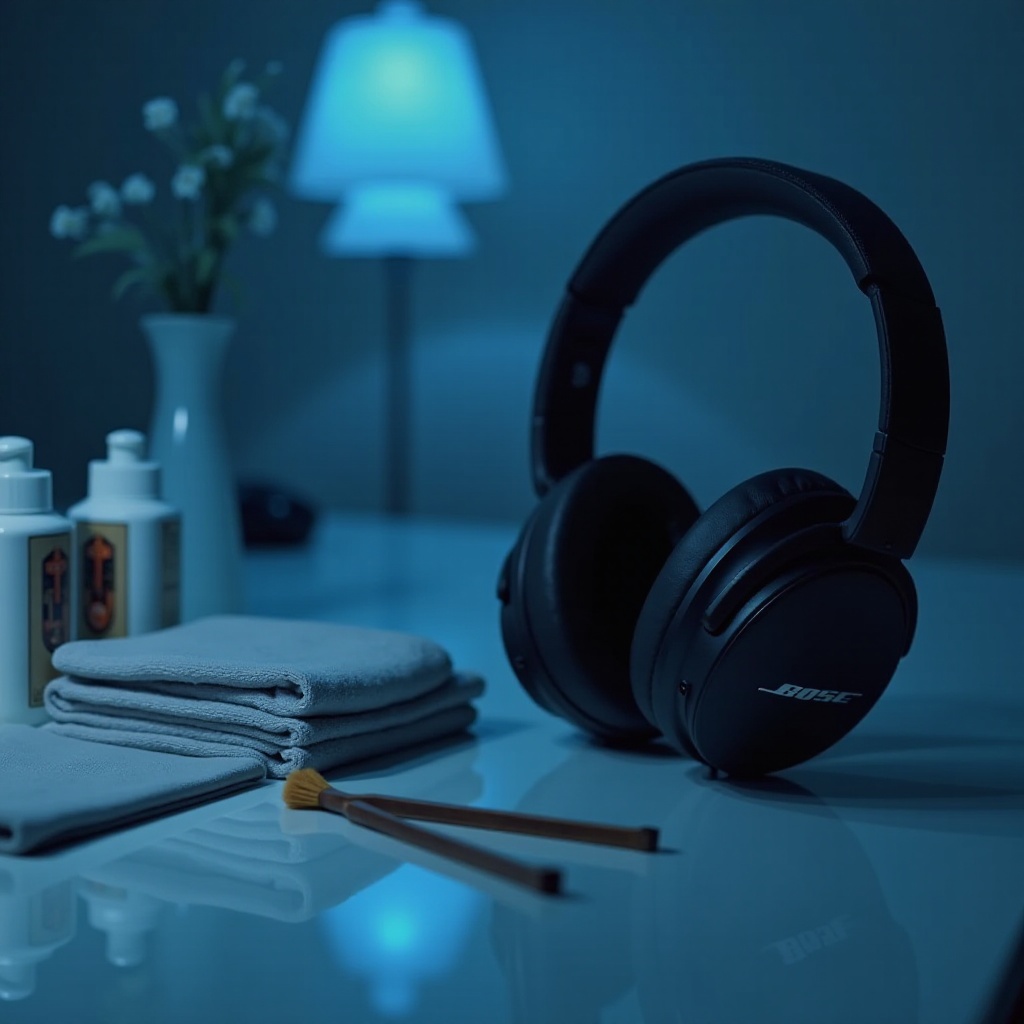
– Clean ear cushions and headband with a soft, dry cloth regularly.
Conclusion
Pairing Bose headphones with different devices is straightforward with the right guidance. By following this comprehensive guide, you can enjoy smooth audio connectivity with minimal interruptions. Regular maintenance and firmware updates are crucial for optimal performance and longevity, ensuring you get the best experience Bose headphones offer.
Frequently Asked Questions
Can I pair Bose headphones with multiple devices simultaneously?
Yes, many Bose headphones support multi-point Bluetooth technology, allowing connection to two devices at the same time.
Why won’t my Bose headphones connect to my device?
Ensure the device is within range, Bluetooth is enabled, and previous pairings are cleared or disconnected if necessary.
How do I update the firmware on my Bose headphones?
Connect them to the Bose Connect app and follow on-screen prompts to download and install the latest firmware updates.