Introduction
Managing files efficiently is crucial for any Windows 11 user. Quick Access is an invaluable tool that helps users easily navigate their most-used folders. By adding the Desktop to Quick Access, you can enhance productivity by reducing the time spent locating frequently accessed files. This guide will explore how to customize Quick Access by including the Desktop folder, thereby optimizing your workflow.
Understanding Quick Access in Windows 11
Quick Access is a feature in Windows 11’s File Explorer that enables users to find files and folders they frequently use quickly. It automatically lists recent files and commonly used folders, facilitating quick access to resources without extensive navigation.
Understanding how Quick Access functions is essential to leverage its benefits fully. By customizing the items in Quick Access, users gain better control over navigation, tailoring it to their specific needs. Let’s delve into why adding the Desktop can significantly boost your efficiency.
Benefits of Adding Desktop to Quick Access
Including the Desktop folder in Quick Access offers several significant advantages:
- Streamlined Access: The Desktop often serves as a hub for important files and shortcuts. Adding it to Quick Access enhances organization and simplifies retrieval.
- Time-Saving: Quickly access the Desktop without navigating through endless folders.
- Enhanced Productivity: By minimizing effort to access frequently used items, users can concentrate more on vital tasks, maintaining workflow momentum.
These benefits illustrate why customizing Quick Access to include the Desktop is highly beneficial for optimizing file management. Let’s proceed with the steps to make this addition.
Step-by-Step Guide to Adding Desktop to Quick Access
Follow these simple steps to add the Desktop to Quick Access in Windows 11:
- Open File Explorer: Press ‘Win + E’ to launch File Explorer swiftly.
- Navigate to the Desktop: Right-click on the Desktop folder in the left sidebar of File Explorer.
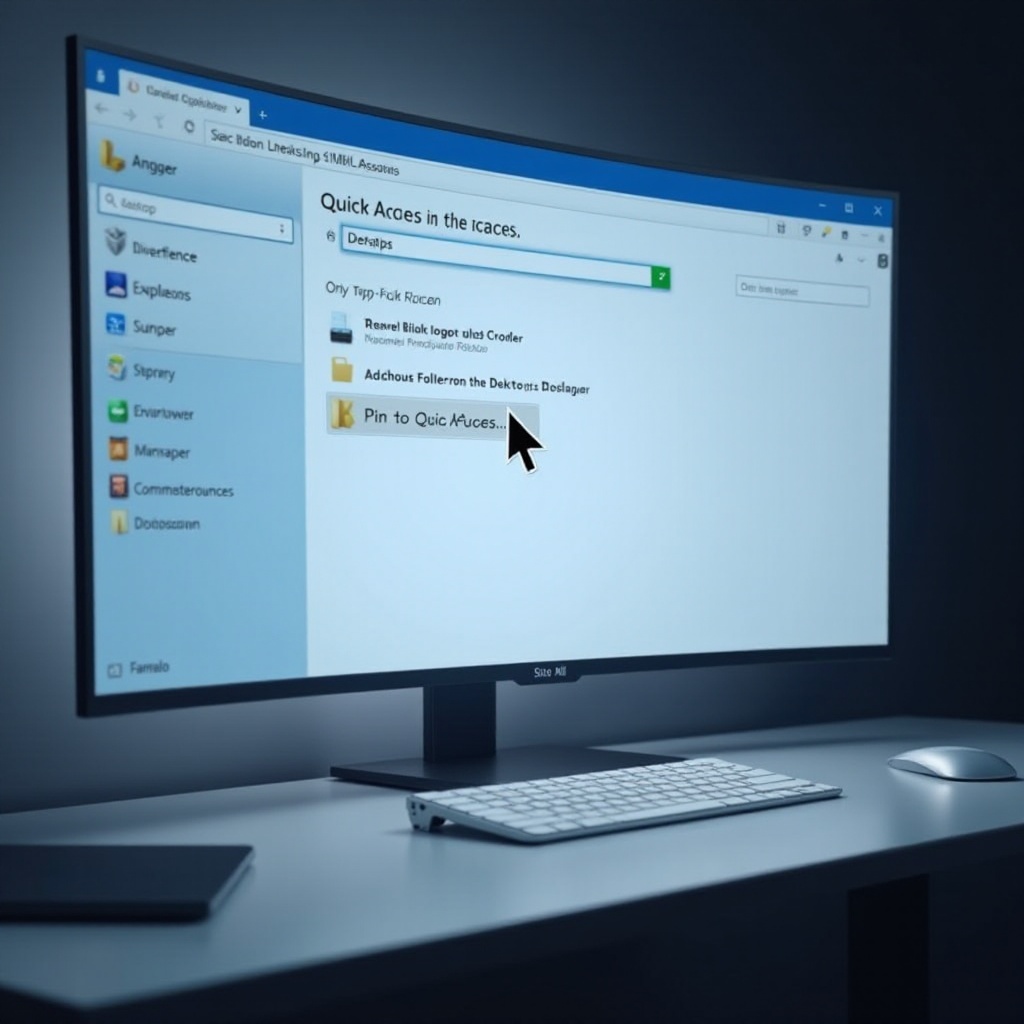
- Pin to Quick Access: From the right-click menu, choose ‘Pin to Quick Access.’ This action instantly adds the Desktop to the Quick Access list.
Now, your Desktop is pinned to Quick Access. If you encounter issues, the next section will guide you through troubleshooting.
Troubleshooting Common Issues
At times, things might not work as intended. Here’s how to resolve common problems when customizing Quick Access:
- Quick Access Not Updating: If changes aren’t reflecting, try clearing the Quick Access cache. Go to the File Explorer Options, uncheck ‘Show recently used files in Quick Access’ and ‘Show frequently used folders in Quick Access,’ then recheck them.
- Desktop Not Appearing in Quick Access: Ensure you’re right-clicking the correct Desktop icon within File Explorer. If issues persist, consider rebooting your system.
Effective troubleshooting ensures your Quick Access remains functional and optimized. Next, consider other customizations to make Quick Access work best for you.
Additional Tips for Customizing Quick Access
Customizing Quick Access goes beyond merely adding the Desktop. Here are additional tips to enrich your File Explorer experience:
- Adding Frequently Used Folders: Identify other frequently accessed folders and pin them using the same steps.
- Removing Unwanted Shortcuts: Right-click any folder in Quick Access you no longer need and select ‘Unpin from Quick Access’ for decluttering.
Such personalizations enhance Quick Access, transforming it into a powerful organizational tool. For those seeking alternatives, explore different methods to access the Desktop quickly.
Alternative Methods to Access the Desktop Quickly
Besides Quick Access, here’s how you can reach the Desktop swiftly:
- Desktop Shortcut on Taskbar: Create a Desktop shortcut and pin it to the taskbar for instant access.
- Windows+D Keyboard Shortcut: Press ‘Windows + D’ to toggle directly to the Desktop, displaying all icons rapidly.
These options offer flexibility in managing frequently accessed files. As these tips empower you to tailor Windows 11 to your needs, let’s conclude with final thoughts.
Conclusion
Adding the Desktop to Quick Access in Windows 11 optimizes file navigation, saves time, and boosts productivity. Customizing Quick Access turns Windows 11 into a more effective tool for personalized file management. By following simple steps and implementing additional tips, users can enhance their productivity, ensuring the system supports their workflow efficiently.
Frequently Asked Questions
Can I remove the Desktop from Quick Access once added?
Yes, right-click on the Desktop in Quick Access and select ‘Unpin from Quick Access.’
What should I do if Quick Access stops updating?
Try clearing its cache via File Explorer Options and reset preferences by rechecking ‘Show recently used files’ and ‘Show frequently used folders.’
Are there other ways to personalize Quick Access in Windows 11?
Yes, you can reorder items and remove those you rarely use to fit your unique workflow.