Introduction
In today’s fast-paced world, efficient multitasking on your smartphone can significantly enhance productivity and streamline your daily activities. Splitting your screen to view and operate two apps simultaneously is a game-changing capability. Whether you need to browse articles while taking notes or chat with friends while watching videos, split screen functionality enables seamless interactions and reduces the constant app switching. Whether you’re using an Android or iPhone, mastering split screen features opens new possibilities. This comprehensive guide will walk you through activating split screen modes on both Android and iOS, while also offering tips for optimal use.
Why Use Split Screen on Your Phone?
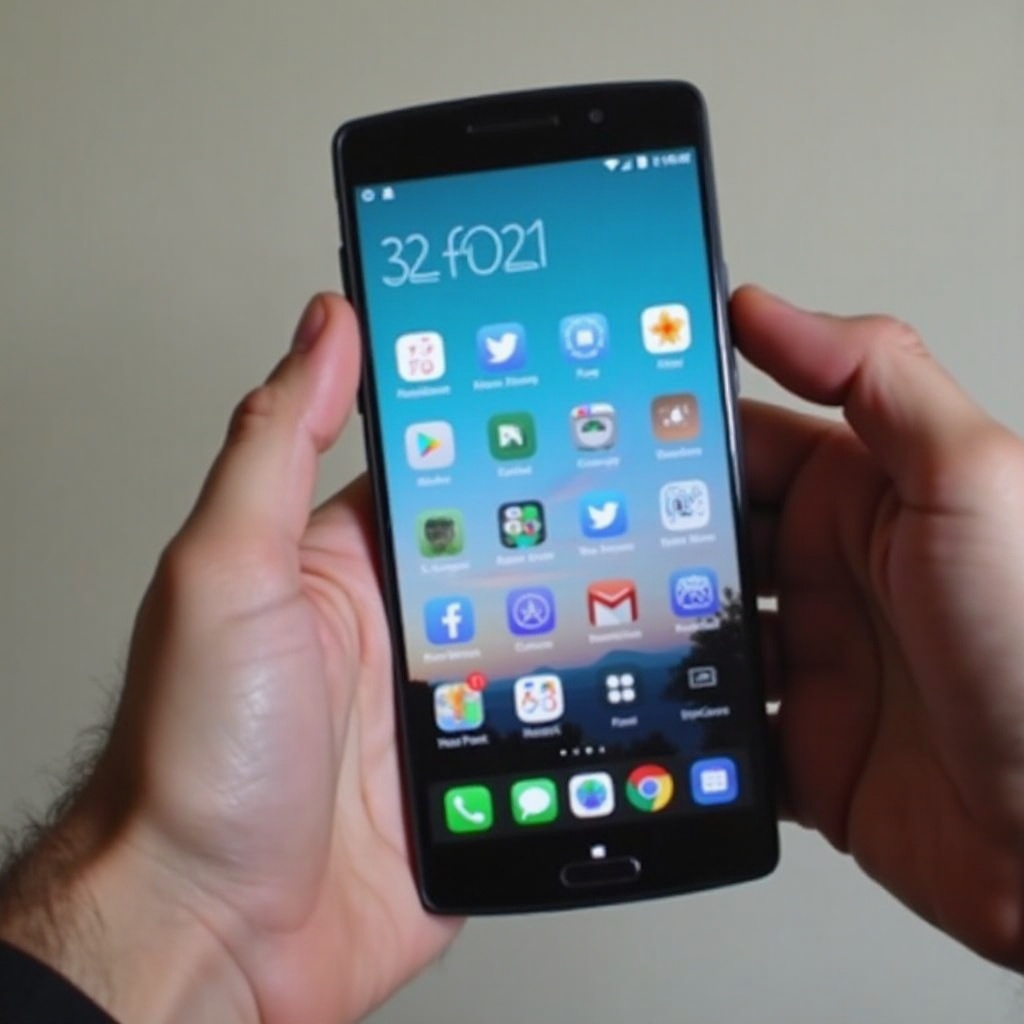
For anyone balancing multiple tasks, the ability to view two apps at the same time is invaluable. Imagine browsing social media and watching a video simultaneously without the need to toggle back and forth. Split screen functionality not only boosts productivity but also improves entertainment experiences by promoting a smoother navigation process. As we dive deeper, you’ll understand the appeal of split screen mode, its benefits for efficiency, and how it can enhance both personal and professional use on your device.
How to Split Screen on Android Devices
Checking Compatibility and Requirements
Before diving into split screen mode on Android devices, it’s crucial to ensure your phone supports this feature. Most devices running Android 7.0 Nougat or later are equipped for split screening. If you’re uncertain about your phone’s capabilities, checking your settings or a quick online search based on your phone’s model and Android OS version will clarify.
Step-by-Step Guide for Activating Split Screen
- Open the Apps: Start by opening the apps you wish to use in split screen mode.
- Access Recent Apps: Tap the recent apps button, usually symbolized by a square or three-line icon.
- Select the First App: Locate the app you want at the top of the screen, tap its icon.
- Enable Split Screen: From the dropdown options, choose ‘Split Screen’.
- Select the Second App: Browse your available apps and tap on the second app to position it at the bottom.
Customizing Your Split Screen Experience
After enabling split screen, you can adjust the screen’s dividing line to alter how much space each app occupies. Simply drag the middle line to distribute the screen real estate to your preference. If you wish to replace one app, return to the recent apps menu and select a different one. The adaptability of this feature allows you to personalize your workflow.
Transitioning from Android’s straightforward split screening, iOS users need slightly different methods due to operating system variations. Let’s explore achieving similar multitasking capabilities on iPhones.
How to Split Screen on iPhones
Understanding iOS Multitasking Limitations
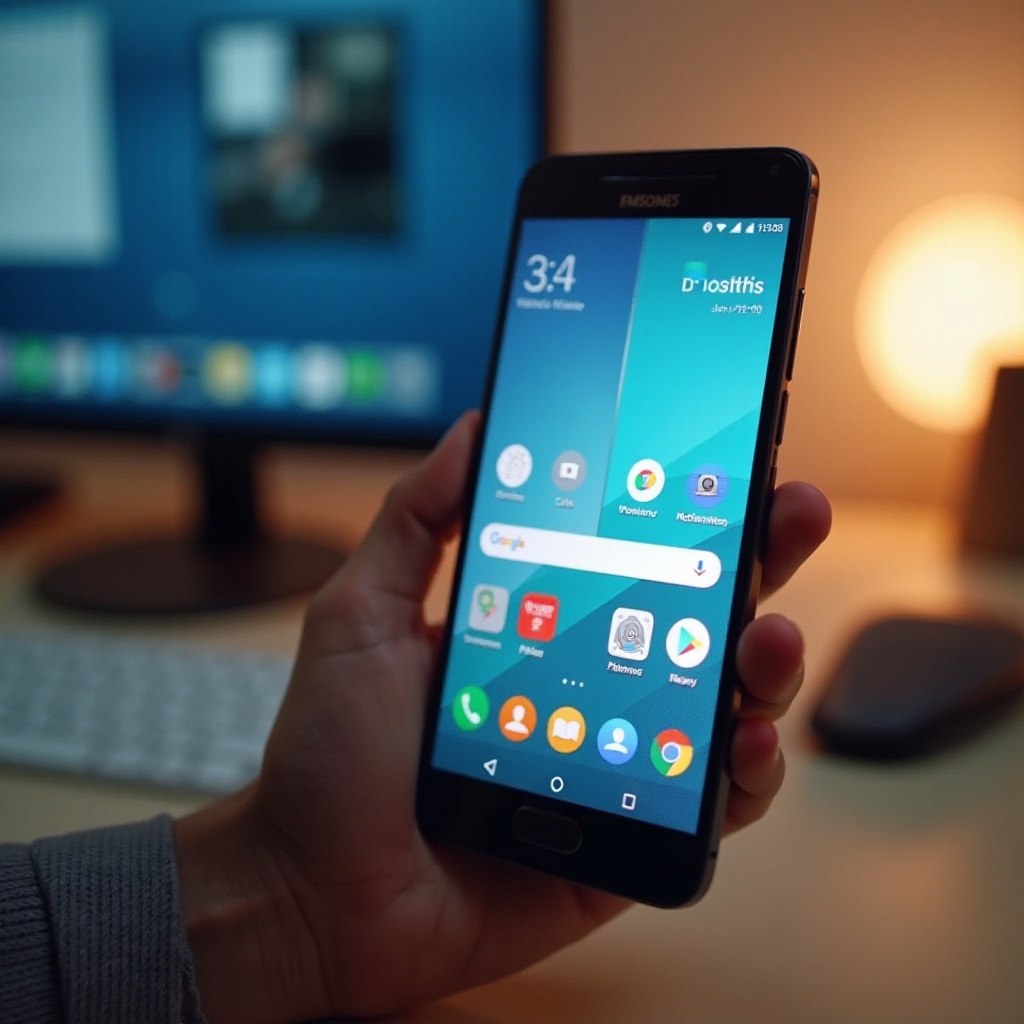
Unlike iPads, iPhones don’t support a native split screen feature. Apple’s design focuses on user interface fluidity, but through widgets and third-party apps, you can simulate a similar experience. Understanding these limitations is vital in setting realistic multitasking goals on iOS.
Third-Party Apps for Simulating Split Screen
To mimic a split screen on iPhones, third-party apps like Splitware or WebDuo provide solutions. These downloadable apps allow two web pages or apps side-by-side views, though the functionality remains outside of core iOS features.
Step-by-Step Instructions for Using Apps
- Download a Split Screen App: Search and download a reliable split screen app from the App Store.
- Open the App: Launch the application post-installation.
- Select Applications or Websites: Use in-app functionalities to choose which apps or websites to display.
- Customize the Layout: Adjust screen partitions within the app for your preference.
Though not as integrated as Android, this method provides a workable alternative for iPhone multitasking, delivering split screen-like capabilities.
Tips for Effective Use of Split Screen
Pairing Apps for Maximum Productivity
To boost productivity, pair complementary apps—like a note-taking app with a document viewer, or your messaging application alongside a calendar for optimized agenda management. This strategy enhances data synthesis and improves multitask effectiveness.
Adjusting Screen Ratio and Layout
Optimize your view by adjusting the screen partition based on importance and usage frequency. Ensure that critical information is prominently visible. This personalization results in a more efficient workflow alignment.
As with any tech solution, you may encounter hiccups when using split screen. Addressing these promptly can ensure continuous productivity.
Troubleshooting Split Screen Issues
If your split screen isn’t functioning as expected, ensure both apps are compatible with this feature; not all support split screen. Confirm your device software is up to date, as updates can resolve potential bugs impacting performance. Finally, a simple device restart can resolve many difficulties. If issues persist, consult device-specific support or customer service for deeper insights.
Conclusion
Harnessing split screen functionalities can greatly elevate your smartphone experience. By improving multitasking capabilities, you maximize efficiency and streamline interactions across apps. Whether you’re on Android or navigating iOS alternatives, these insights can help you seamlessly incorporate split screen use into your daily routine.
Frequently Asked Questions
Is split screen available on all smartphones?
Not all smartphones support split screen. Some older and budget-friendly devices may lack this feature.
Can I use split screen in landscape mode?
Yes, split screen is compatible with landscape orientation. You can rotate your phone after enabling split screen mode.
How do I exit split screen mode?
Drag the dividing line completely to one side of the screen to close one app, restoring the other to full screen.