
Introduction
Fortnite stands as a gaming phenomenon, captivating players with its thrilling battle royale format and immersive graphics. While many enjoy solo play, teaming up with a friend on the Xbox Series S brings a new dimension to the action. Understanding the process of how to engage in two-player modes will transform your gameplay and amplify the fun factor, inviting seamless cooperation into your gaming sessions.

Setting Up Your Xbox Series S for Split-Screen Play
Transitioning into split-screen action requires an adequate setup on your Xbox Series S. The foundational step is ensuring both players have separate user accounts. Setting this up is simple but crucial, as it lays the groundwork for a smooth cooperative gaming experience.
- Required Equipment and Accounts:
- Two interactive Xbox controllers.
-
Two active user accounts for each participant.
-
Connecting to Xbox Live:
- Confirm your Xbox Series S’s internet connectivity.
- Ensure both accounts are logged into Xbox Live.
With these essentials in place, your console is primed for Fortnite’s cooperative features. Next, we need to dive into the specifics of enabling split-screen mode within the game.
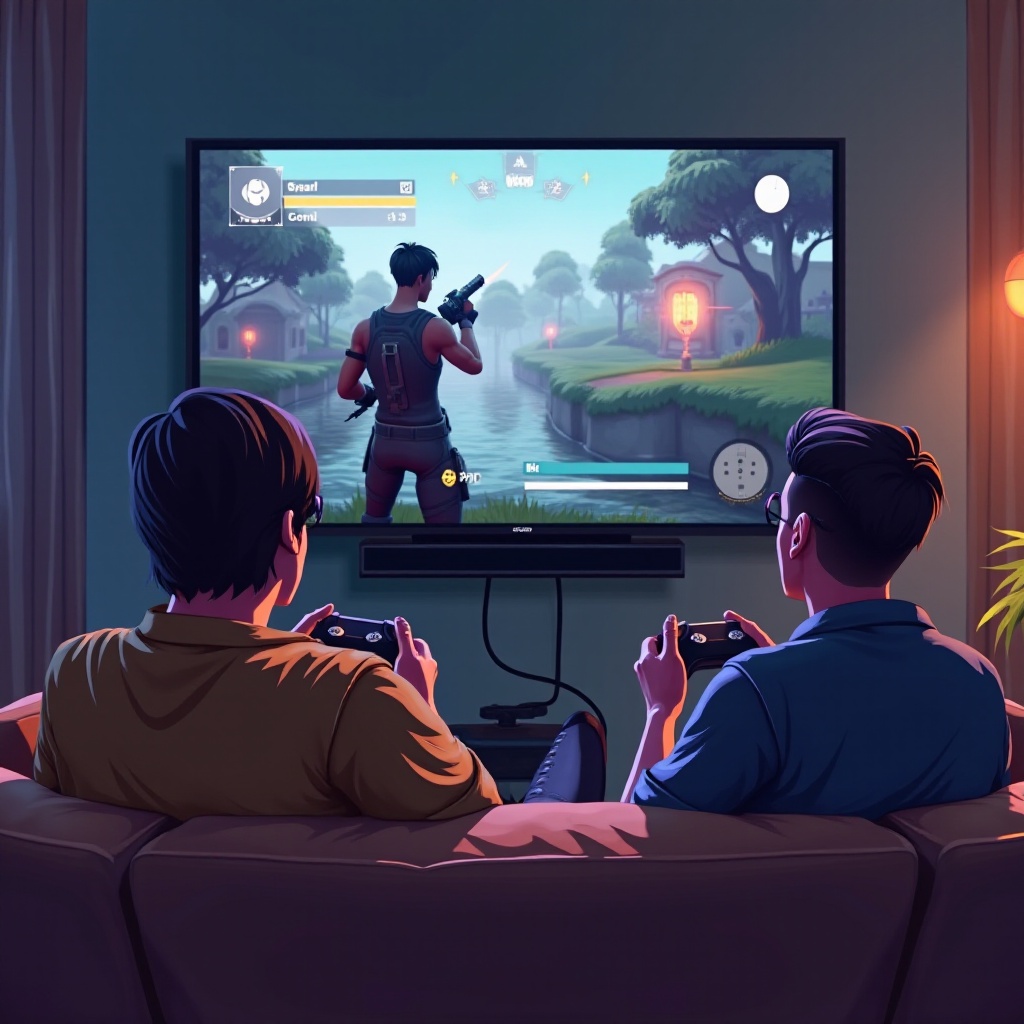
Enabling Split-Screen Mode in Fortnite
Launch Fortnite from your Xbox dashboard and follow these straightforward steps for engaging the split-screen setup with your paired player.
- Step-by-Step Guide:
- Open Fortnite; upon greeting the lobby screen, connect the secondary controller.
- Await the prompt that appears for the secondary player to sign in using existing account credentials.
-
Engage the secondary player via ‘A’ button on their controller to merge into the shared game experience.
-
Troubleshooting Common Setup Issues:
- Double-check both accounts are actively connected to Xbox Live if hurdles arise.
- For persistent joining issues, consider game and system restarts or look for related updates.
Following these directions ensures that you get into the action quickly, setting the stage for optimizing gameplay settings.
Optimizing In-Game Settings for Split-Screen Play
After setting up gameplay, optimizing the game’s settings can elevate your cooperative sessions. Performance enhancements and communication tweaks create a seamless experience.
- Graphics and Display Adjustments:
-
Access Fortnite’s settings menu to tailor the display for shared play. Adjust the resolution favorably if experiencing lag.
-
Audio Configuration for Team Play:
- Headsets work wonders for clarity in communication between players.
- Fine-tune audio settings to highlight critical game sounds over background noise.
These pivotal changes to settings will amplify your enjoyment. Now, let’s move on to strategizing for victory.
Strategies for Effective Two-Player Gameplay
Effective two-player gameplay hinges on communication and strategy. Working as a cohesive unit can make all the difference in competitive rounds.
- Communication Tips:
- Keep communication clear and consistent with concise callouts during pivotal moments.
-
Establish a system of signals for quicker, more intuitive teamwork.
-
Developing Winning Team Tactics:
- Assign specific roles based on each player’s strengths, such as one focusing on combat while the other builds.
- Formulate attack and defense strategies for various in-game situations, allowing adaptability against differing opponent tactics.
Utilizing these choices enables better coordination and heightens your potential for success. However, even the best-prepared setups can encounter issues.
Troubleshooting and Technical Support
It’s unavoidable—technical hiccups may occasionally disrupt your gaming. Here’s how to resolve them, restoring smooth gameplay.
- Common Problems and Solutions:
- Problem: Unexpected disconnections.
Solution: Reconnect via Xbox settings or power cycle your controllers. -
Problem: Lag induced by heavy graphics.
Solution: Lower the in-game graphic settings for added fluidity. -
When to Seek Additional Support:
- Experiencing continual connectivity challenges may require consulting Xbox’s dedicated support services.
- Issues beyond software might point to hardware malfunctions, necessitating professional assistance.
Efficient troubleshooting maintains your focus on gameplay rather than disruptions. Now, let’s recap our journey into the rewarding world of dual-player Fortnite battles.

Conclusion
Engaging in Fortnite on the Xbox Series S through split-screen opens up limitless opportunities for strategic cooperation and mutual enjoyment. Aligning settings, resolving issues, and applying teamwork strategies enhances every battle experience, paving the way for numerous duo victories. Dive into this world today, making every encounter a thrilling memory.
Frequently Asked Questions
How do I fix screen size issues in split-screen mode?
Adjust the aspect ratio in the console’s display settings for clear visibility for both players.
Can I play split-screen on older versions of Xbox?
Yes, split-screen mode is available on Xbox One and newer models like Xbox Series X and S.
What are the best controllers for playing Fortnite together on Xbox?
Standard Xbox controllers work well, but consider enhanced controllers with extra grip and responsive buttons for an advantage in gameplay.